Install the plugin, connect Apple Photos and publish your first collection.
Before you begin
You need a Mac, Lightroom Classic and the LR to Photos download. The published tested baseline is macOS Sequoia with Lightroom Classic 14. Keep a current backup of your Lightroom catalogue and Photos library.
1. Install the plugin
- Download your purchase from Gumroad and unzip it.
- Move the lrtophotos.lrplugin folder somewhere permanent on your Mac.
- In Lightroom Classic, open File → Plug-in Manager, click Add and select that folder. Check that LR to Photos is enabled, then click Done.
2. Prepare Apple Photos
Open the Photos library you intend to use. To have published photos reach your iPhone, use your System Photo Library with iCloud Photos enabled. A separate local demo library will not sync to iCloud.
In Photos Settings → General, keep Copy items to the Photos library enabled so Photos stores its own copies. Apple explains copied and referenced files.
3. Set up the publish service
In Lightroom Classic’s Library module, find Publish Services → LR to Photos → Set Up. Choose the available export settings for your intended use. Use Test Connection and follow any macOS prompt allowing Lightroom Classic to control Photos.
Save the service. Create a published collection and give it the name you want for your album.
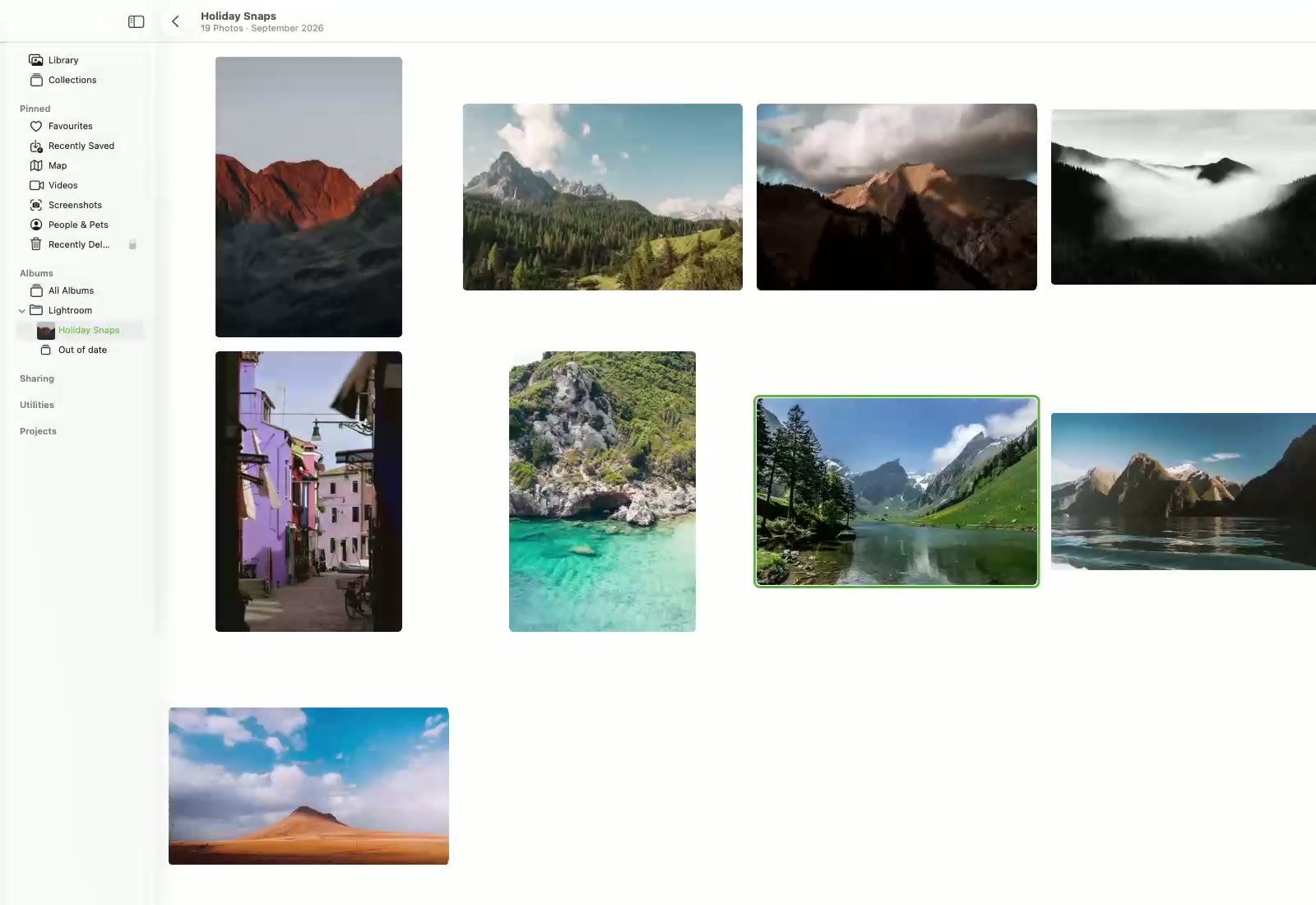
Organise albums inside folders
Choose Use collection name as album for a matching album per collection, or use one album for the whole service. A root folder path such as /Travel/2026 puts your albums inside nested folders in Photos. Check the destination preview before publishing. An album name beginning with / is a full path and overrides the root folder.
4. Publish a small collection
Add a few photos to the published collection and click Publish. Open Apple Photos and check the album and images before sending a larger set.
5. Publish later edits
Lightroom tracks photos that need republishing. When you publish changed edits, the plugin imports the new version. With Collect replaced photos enabled, the previous Photos item is collected in an Out of date album for review. Confirm that the new version arrived before cleaning up old copies. The plugin does not delete them.
If something needs attention
If Photos access is denied, check macOS System Settings → Privacy & Security → Automation. Make sure Lightroom Classic has permission to control Photos. If publishing or setup still fails, email hello@lrtophotos.com with your macOS, Lightroom Classic and plugin versions, plus the exact error message.